Build your hotel website. Bring bookings into BluePMS.
BluePMS brings a visual hotel website builder and a direct booking engine together. Create a new site, or connect your existing website to room availability, rates and Front Office reservations.
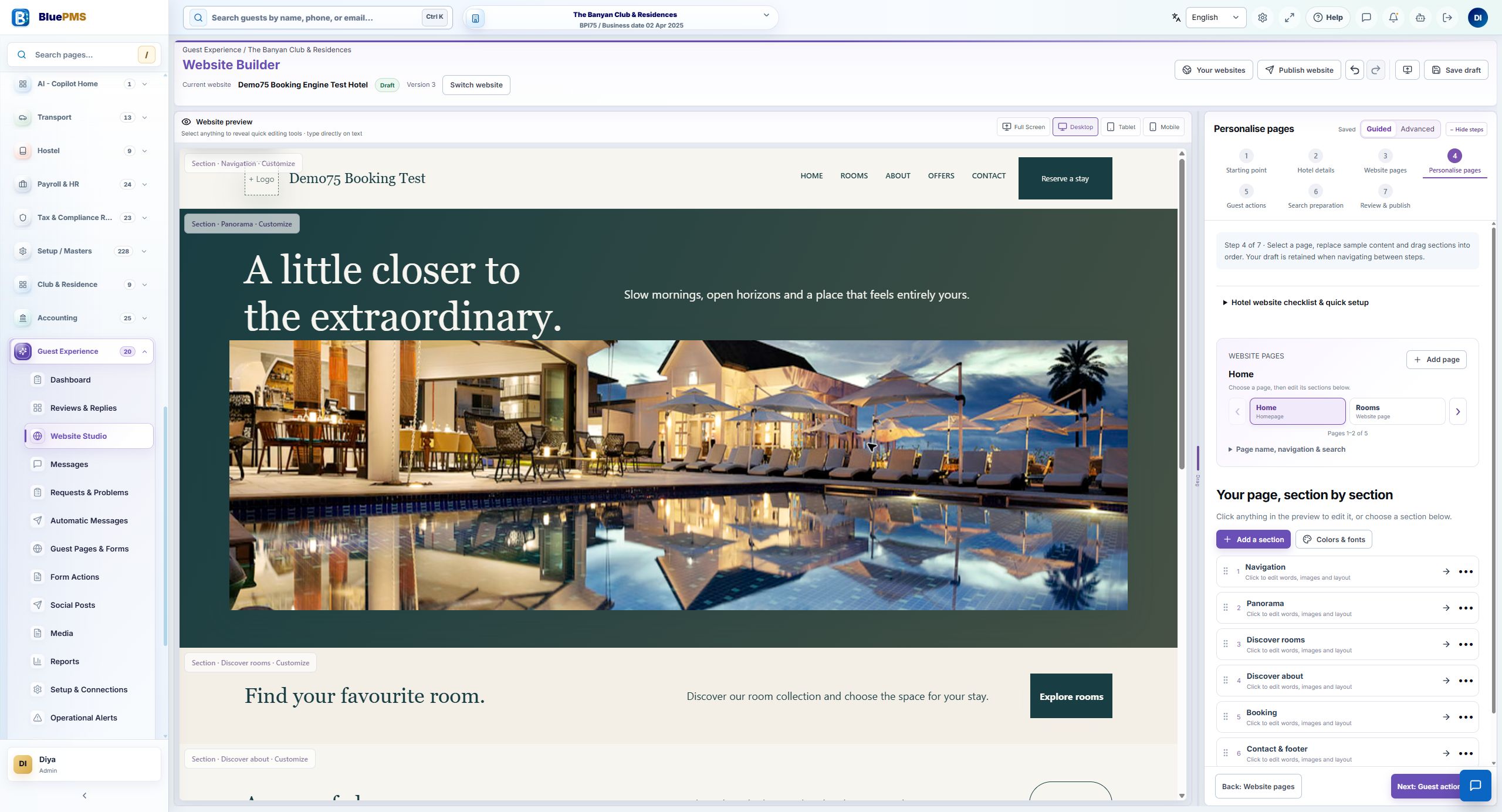
Edit the page in its preview, with hotel navigation and design controls alongside it.
The actual BluePMS designer in Pearl Light. Hotel navigation is on the left, the website preview in the centre and page controls on the right. Demo template content is illustrative.Open designer screenshot full size in a new tab
Make it look and sound like your hotel
Start with one of 40 hotel templates or a blank page. Bring the rooms, dining and experiences together in your own words.
Your logo, colours, typography and navigation
Room, dining, wedding, spa, offer and contact pages
Photographs, galleries and image or video hero sections
Edit the page while you see it
Work through guided setup or use the advanced controls. Refine a section while keeping the whole page in view.
Text editing, reusable sections and page ordering
Desktop, tablet and mobile previews
Drafts, autosave, undo, redo and version previews
Give every page the right details
Describe the hotel clearly for guests and search engines. Prepare the page information alongside the design.
Page titles, descriptions and social images
Hotel structured-data settings
Checks for headings, image descriptions and links
Direct bookings, connected to your PMS
Give guests the room choices. Give your team the reservation.
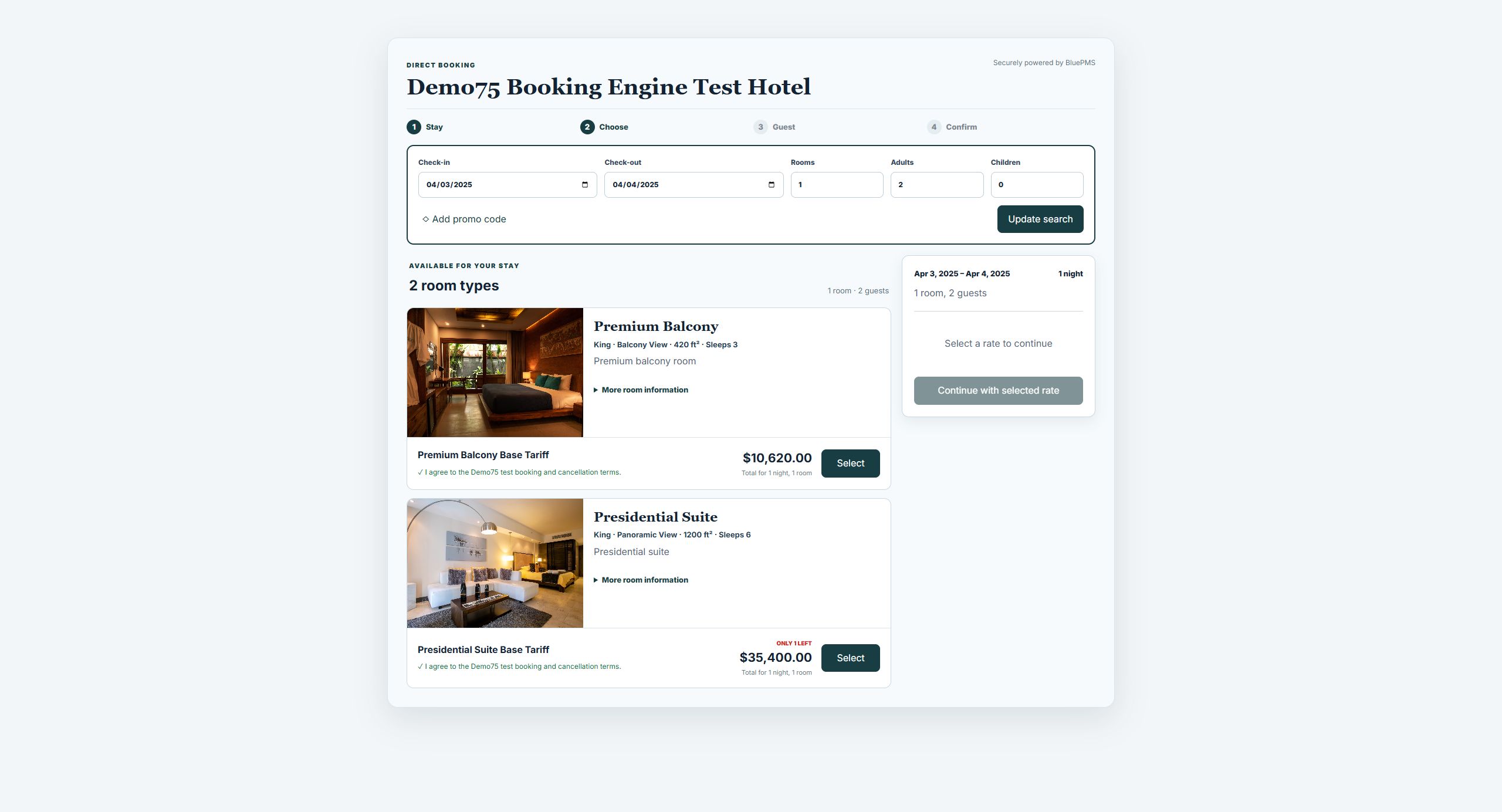
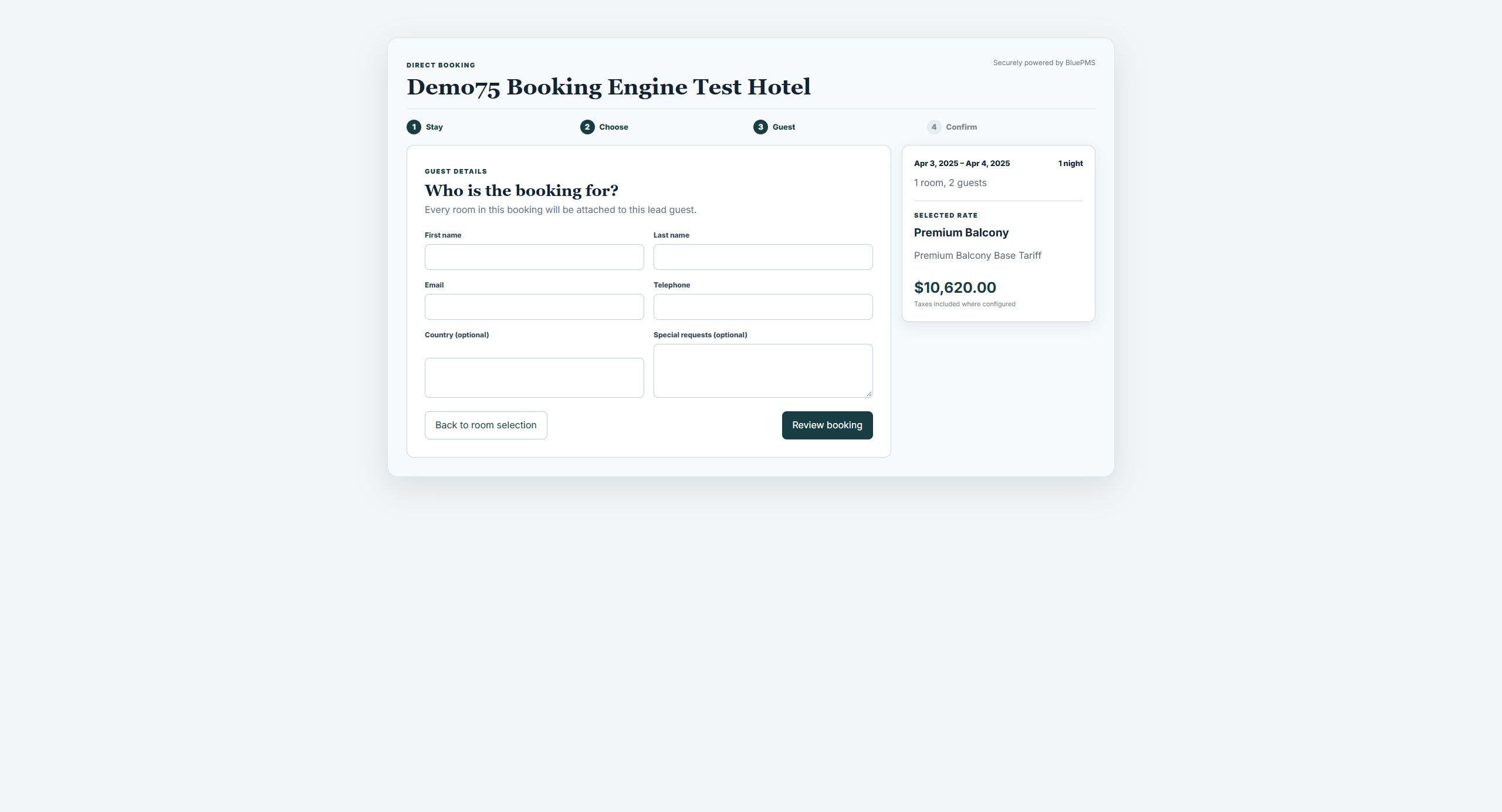
Guests search the property’s configured availability, compare room and rate options, and reserve a stay. Successful bookings arrive in BluePMS for Front Office to work with.
The website and booking engine do not have to be introduced together. Agree the right public address and booking setup before inviting guests to use them.
You already have a website
Connect the booking engine.
Keep the site your guests know. Your website team adds the active BluePMS booking link or embeds the engine on an approved website address.
Before launch: check the link or embed on the intended domain, then walk through room search and booking.
You are creating a new website
Design it inside BluePMS.
Review your pages and use the BluePMS website-link publishing route available to your property. Confirm the public address and setup with our team.
Publishing limits: custom-domain publishing, managed subdomains and downloadable exports are not currently available in the builder.
Have these ready for your launch review
Your logo, photographs and final page content
Room types, rates, taxes and occupancy rules
Booking terms, offers and arrival information
A desktop and mobile walkthrough of the guest journey
Practical answers before you decide
Website and booking questions, answered.
What is the difference between the Website Builder and Booking Engine?
The Website Builder creates and edits your hotel’s pages, branding and content. The Booking Engine lets guests search rooms and rates and make direct reservations in BluePMS. You can use them together, or connect the booking engine to an existing website.
Can we keep our existing hotel website?
Yes. An active BluePMS booking engine provides a direct booking link and embed code for approved website addresses. Your website team can add the link or embed to your current site, then check the guest journey on the intended domain.
How does a new website go live?
Review the design and use the BluePMS website-link publishing route available to your property. Confirm the public address and setup with our team before launch. Custom-domain publishing, managed subdomains and downloadable website exports are not currently available in the builder.
Does the booking engine take online payments?
This booking journey confirms reservations with payment due at the hotel. It does not collect card details or take an online payment. Guests see the stay summary and accept the hotel’s terms before submitting.
Where do availability, rates and reservations come from?
Room inventory, rates, occupancy limits, tax settings and booking rules come from the property’s BluePMS setup. Availability is checked during search and submission. A successful booking creates confirmed reservations in the same PMS your Front Office uses.
Can guests book several rooms or use a promotional code?
Guests can book one to five rooms using the same selected room type and rate. They can enter a promotional code during search. Eligible percentage discounts follow the hotel’s configured business date, validity period, minimum-night rule and redemption limit.
What should we prepare for our website and booking demo?
Bring your current website address, a few room types and rate plans, your property photographs and the booking rules you want to discuss. The session can cover page editing, room search, promotions, the guest-details step and the supported publishing or integration route.
Does the builder support SEO and AI search preparation?
It includes page titles, descriptions, social images, hotel structured-data settings and checks for headings, image descriptions and links. These help prepare clear, accessible content. Indexing, search rankings and inclusion in AI answers depend on the published site and are not guaranteed.
See it with your team
A demo built around your website and booking journey.
Bring your current website and a few room and rate examples. Tell us whether you want to connect an existing site or create a new one.
What to cover together
Edit a hotel page and check the mobile preview.
Search rooms and rates, including a promotional offer.
Review guest details and a pay-at-hotel reservation.
Confirm the publishing or integration route for your property.
No need to prepare a finished brief. Your current website and the questions your team wants answered are a useful starting point.
Arrange your session
Send your property name, current website and preferred demo time. The email and WhatsApp links include the website and booking topics above.